If you need an iptv buffering fix on an Android TV or Google TV device, work through a short list in order: check the Wi-Fi connection, adjust the router, install any system update, restart the device, then clear the app's data. Each step below says how to tell whether it helped. Menu names can vary by device and software version, so treat the labels here as a guide.
This list is built from Google's own help pages for Android TV and Google TV. It is a different angle from the troubleshooting section in our Firestick setup guide and from the wired-versus-wireless advice in our streaming device comparison. Here the focus is on the Android TV and Google TV system settings.
The order to try the fixes in
Google's Google TV page tells you to follow its steps in order and to move on to the next one if a step does not work. That is a good habit for buffering too, because it changes one thing at a time and you can see which change helped.
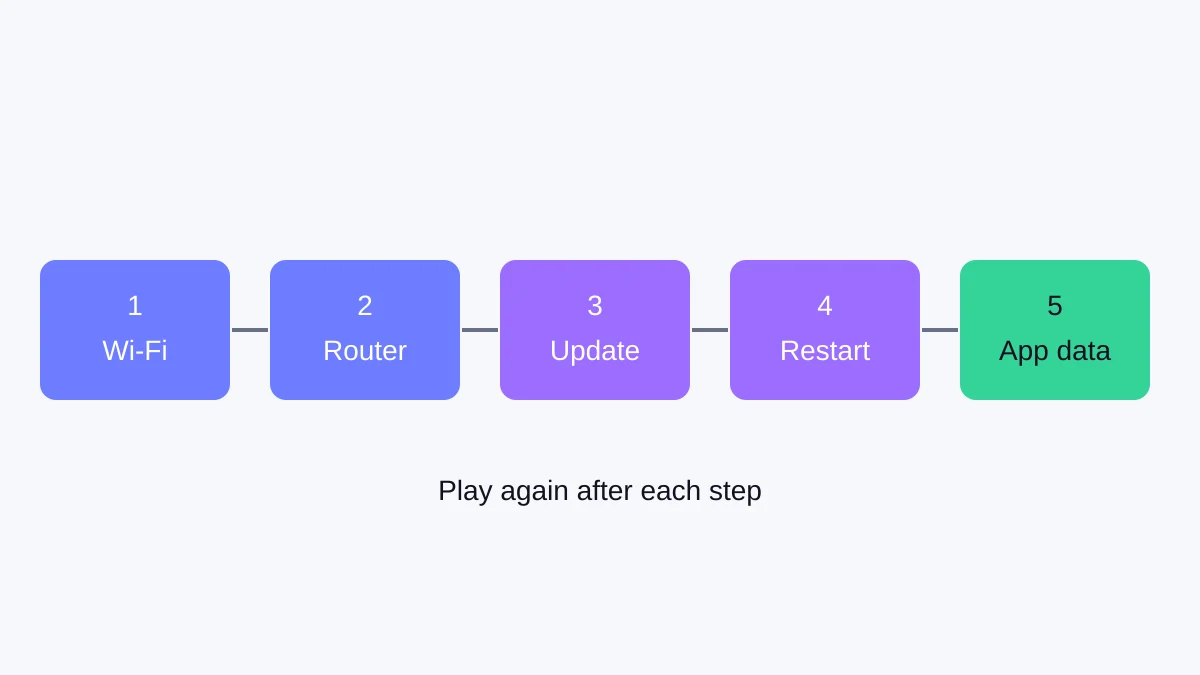
The order used below is: Wi-Fi, router, system update, restart, then app data. After each step, open your IPTV app and play the same channel again. If the picture holds steady for several minutes, you have found your fix.
Step 1: Check the Wi-Fi connection
Start with the network, because it is the most common thing to adjust. On Android TV, Google's page says to go to Settings from the home screen and, under "Device," select Wi-Fi. Pick a network and follow the on-screen instructions.
On Google TV, go to Settings, then Network & Internet. Make sure Wi-Fi is on and that you are connected to the right network. If your router has more than one band, check that the TV is on the correct band.
Then open one of your apps and play again. You will know it worked if the video plays without the spinner returning.
One tip from Google: Google TV only shows secure Wi-Fi networks, such as WEP, WPA-PSK and WPA2-PSK. Unsecured networks do not appear.
Step 2: Adjust the router and connection
If Wi-Fi is on but the connection is slow, Google's Google TV page suggests three things you can try:
- Reboot the router, or unplug it and plug it back in.
- Move the router closer to the TV.
- Use a cable to connect the router to the TV.
The same page also says that, if your router allows it, you can set up a 5 GHz network instead of a 2.4 GHz one, and check with your router maker for details. Some routers also let you set a priority device in the Google Home app.
To check it worked, play a live channel for a few minutes after each change. Change one thing at a time so you know which one helped.
Step 3: Install any system update
An out-of-date system can cause playback trouble, so check for updates next. On Android TV, Google's page says to go to Settings, then About, then System software update, and install anything available. On Google TV, go to Settings, then System, then About, then System update, then Check for update.
After the update finishes, play your content again. If there was no update waiting, you can move straight on to the restart.
Step 4: Restart the device
A restart clears whatever the device has been holding on to. On Android TV, go to Settings, then About, then Restart. On Google TV, go to Settings, then System, then Restart.
When the system comes back, open your IPTV app and play again. Success looks like a stream that starts normally and keeps going.
Step 5: Clear the app's data or cache
If the earlier steps did not help, clear the data for your player app. Google's Android TV page says to go to Settings, then Apps, find the app and choose Clear data or Clear cache. On Google TV, go to Settings, then Apps, then See all apps, select the app and choose Clear data.
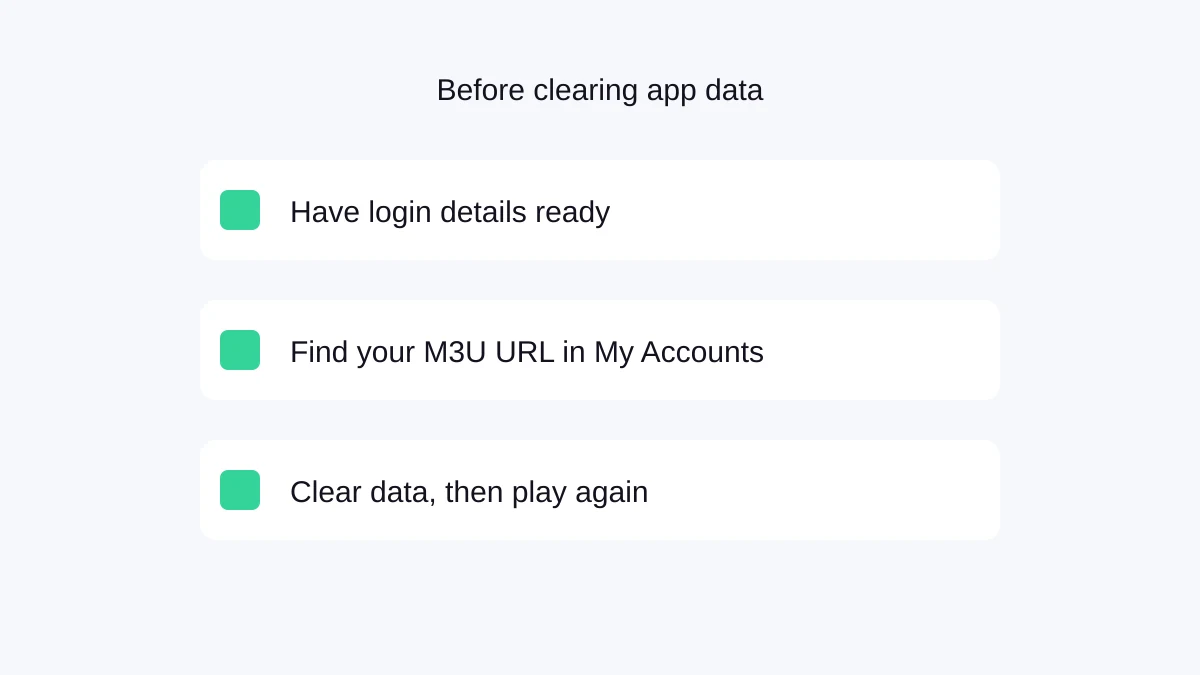
Before you do this, have your login details ready. If you use IBO Player, you may need to enter your setup details again. If you use an M3U link, it is always available in My Accounts. Then play again to see if the buffering has stopped.
Two more things Google mentions
Google's Google TV page says that a device that replaces your Domain Name System (DNS) may affect your Wi-Fi connection, and suggests removing it to see if that helps. It also lists a factory reset as the final step, but warns that it erases all data on the device and recommends trying the other steps first.
When to contact support
If the buffering happens on every device and every network, contact support. You can use the WhatsApp chat, which the site's Live Chat button opens, or email support@medialen.tv. Tell us which steps you already tried and which device you use, so we can pick up from there.
Using MediaLen.tv on Android TV
MediaLen.tv works on Android TV through IBO Player: install it from the Google Play Store, then send us the MAC Address and Device Key. It also works with any IPTV player that supports M3U or Xtream credentials. If you are still choosing, see our page on an IPTV subscription, and compare the options on the plans page. Our IPTV vs cable comparison covers costs if you are weighing the two.
Reviewed by Nour-eddine, who runs MediaLen.tv.
Frequently asked questions
What should I try first when IPTV buffers on Android TV?
Start with the Wi-Fi connection. Confirm the TV is on the right network, then open your app and play again. If that does not help, check for a system update and restart the device.
Does a 5 GHz network help with buffering?
Google's Google TV help page says that if your router supports it, you can set up a 5 GHz network instead of a 2.4 GHz one. Check with your router manufacturer for the details.
Will clearing app data delete my playlist?
It may remove the app's saved settings and sign-in details, so keep your login details or M3U URL handy before you do it. Your M3U URL is available in My Accounts.
Should I factory reset my Google TV device for buffering?
Only as a last step. Google warns that a factory reset erases all data on the device and recommends trying the other steps first.
When should I contact support?
If buffering happens on every device and every network, contact support through the WhatsApp chat (the Live Chat button on the site) or at support@medialen.tv.