How to Get IPTV on a Samsung Smart TV
To use iptv on samsung smart tv, you install a player app from the TV's own app store, open it, and then enter the details from your MediaLen.tv My Accounts page. You do not need a separate box. This guide covers the whole path on one TV, in order, with a quick way to confirm each step worked.
If you are still deciding whether IPTV suits you, our plain explainer on IPTV meaning is a good place to start. If you want the same setup on a stick instead, see how to set up MediaLen.tv on Firestick.
What You Need Before You Start
You need three things: a Samsung smart TV connected to your home network, a remote that can search in the app store, and your MediaLen.tv account details. Having them ready makes the rest take far less time.
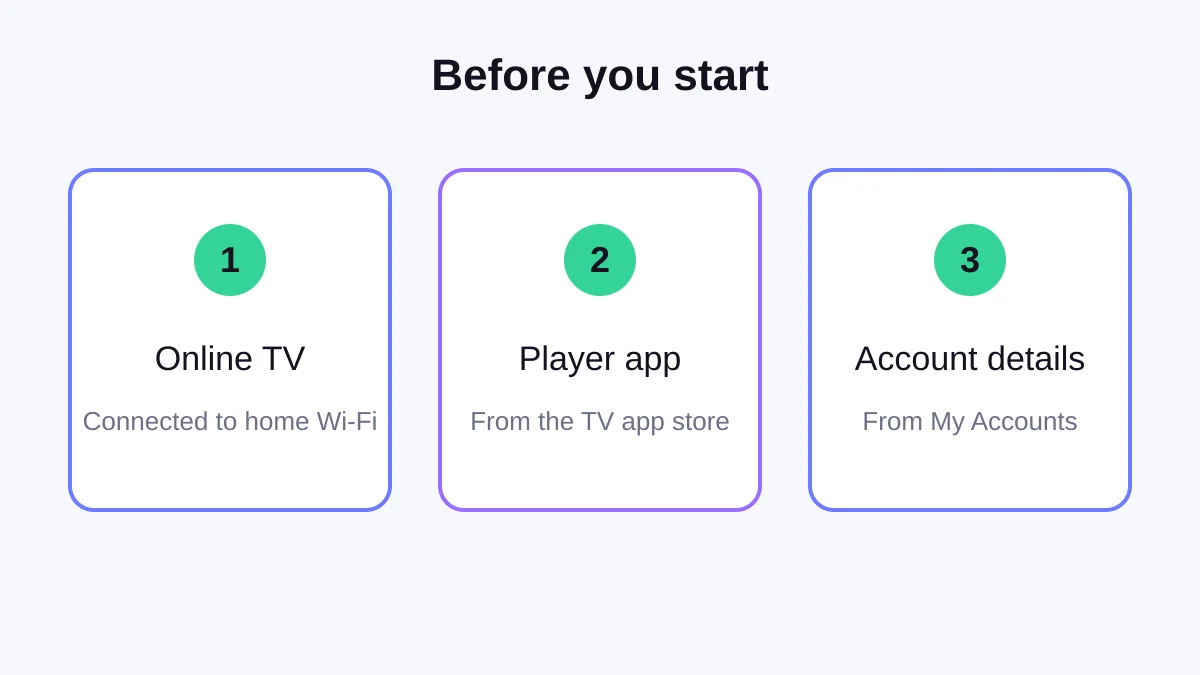
- Check that the TV is online. It should be able to open other apps and load them. If it cannot reach the internet, fix that first.
- Choose a player app. MediaLen.tv's setup for Samsung and LG smart TVs uses IBO Player. MediaLen.tv also works with any IPTV player that supports M3U or Xtream credentials, so you are not tied to one app.
- Have your account details to hand. Your M3U URL is always available in My Accounts. For IBO Player, the setup sends us the MAC Address and Device Key that the app shows you.
If you have not picked a plan yet, see the IPTV subscription page or compare options on the plans page. Plans are priced by length and by how many devices (1 to 4) can stream at once. The lowest advertised rate is $5.00 per month for 1 device on the longest plan, at $59.99 in total for 1 device.
Install a Player App From the Samsung App Store
The install itself takes four short actions, and Samsung documents them on its support page for using apps on a Samsung Smart TV. Menu names can vary by TV model and software version, so treat the wording below as a guide.
- From the Home screen, select Apps, then the Search icon in the top-right corner. You can tell it worked when a search box and on-screen keyboard appear.
- Enter the name of the player app, such as IBO Player. Select it from the results. You can tell it worked when the app's page opens with an Install option.
- Select Install. The app downloads. You can tell it worked when the Install button changes to show progress and then an option to open the app.
- Press Home, then navigate to your newly downloaded app to open it. You can tell it worked when the app's first screen loads.
If the app is not listed in the Home menu, select Apps and pick it from there. Samsung also says you can add apps to your Home screen: go to Apps, select Settings in the upper right corner, highlight the app, and select Add to Home.
Add Your MediaLen.tv Details in the Player
Once the player is open, it needs to know about your service. How you do this depends on the app, and labels change between app versions, so read the screen rather than hunting for a specific button name.
If your app shows a MAC Address and Device Key
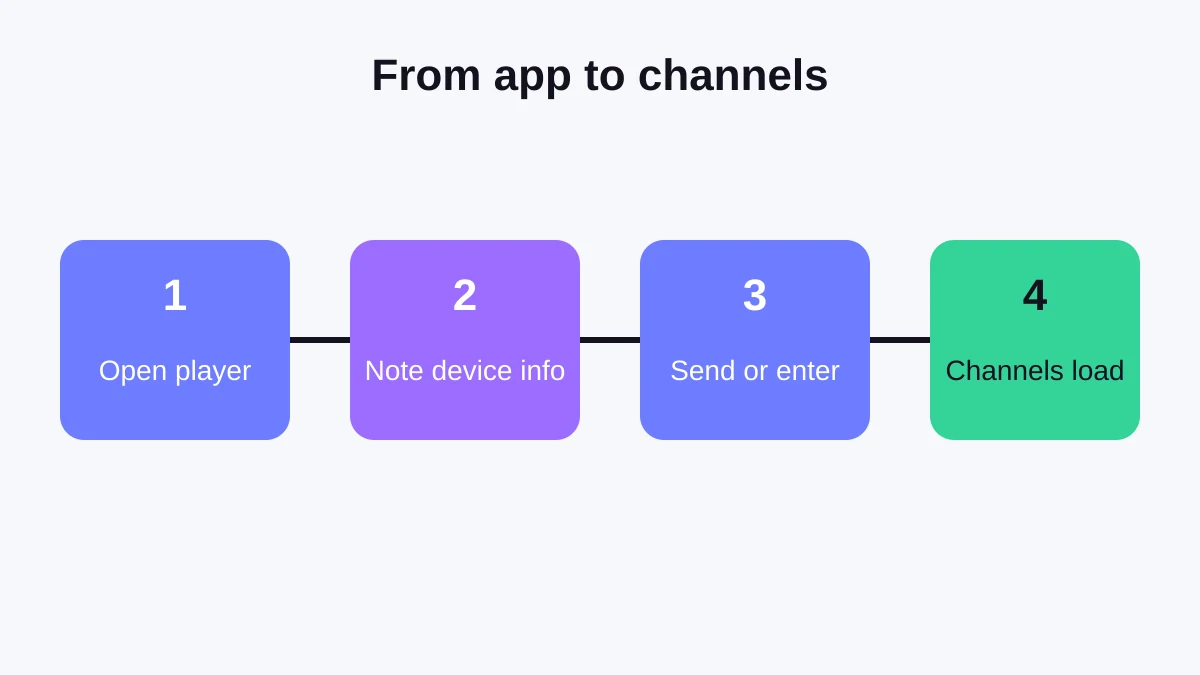
IBO Player-style setups show a MAC Address and a Device Key on the first screen. Write both down exactly as shown. MediaLen.tv's setup for Samsung and LG TVs has you send us these two values. You can reach us through the WhatsApp chat (the Live Chat button on the site opens it) or by email at support@medialen.tv. Once your details are linked, restart the app and the content should load.
If your app asks for a playlist or login
Many players let you add a playlist by link or enter Xtream credentials. Look for an option to add a playlist or an M3U URL, or one for login details. Then copy the M3U URL from My Accounts and enter it carefully. You can tell it worked when the app begins loading channel groups. Our explainer on what an M3U file is covers what that link actually does.
On a TV remote, typing a long link is slow. If the typing is a pain, you can sign in to My Accounts on a phone or computer, check the link there, and enter it character by character.
Check That Channels and Guide Load
A quick test confirms the setup before you settle in. Open a live channel, wait a moment, and see whether picture and sound start. Then open a movie or show from the on-demand section and do the same.
MediaLen.tv lists 22,000+ live channels across 45+ regions and 100,000+ movies and shows on demand, so the lists can be long at first. Give the app a little time to load them. If you see channels but an empty schedule, read what an electronic program guide is for how guide data fits in.
If Something Does Not Work
Work through these checks in order:
| Symptom | What to check |
|---|---|
| App missing from Home | Open Apps and select it there, or use Add to Home from Apps settings |
| Player asks for details you cannot find | Look in My Accounts for your M3U URL |
| Nothing loads | Confirm the TV is online, then close and reopen the app |
| Picture stutters | Check your connection, and see the IPTV buffering fix tips |
If the problem happens on every device and every network, contact support. Use the WhatsApp chat (the Live Chat button on the site opens it) or email support@medialen.tv. The Help Center and Client Portal are also there for setup guides and account management.
Is a Samsung TV Enough, or Do You Need a Device?
For many homes a smart TV alone is enough. A separate stick or box can still help if your TV is older or slow to run apps. Our guide to the best devices for streaming compares the options, and the how to choose an IPTV service checklist helps with the service side.
Next Steps With MediaLen.tv
MediaLen.tv works on Samsung smart TVs through a player app, and also on Android TV, Fire Stick, iPhone and iPad, MAG boxes and Roku. Plans run from 1 month to 1 year, with a 7-day money-back guarantee, and your subscription does not renew automatically. When you are ready, see the plans and choose the device count that matches how many screens you use at once.
Reviewed by Nour-eddine, who runs MediaLen.tv.
Frequently asked questions
Do I need a Firestick or other box for a Samsung smart TV?
No. A Samsung smart TV can run a player app installed from its own app store, so no separate box is needed. If you already own a streaming box, it works too.
Which player app should I install?
MediaLen.tv's setup for Samsung and LG smart TVs uses IBO Player. MediaLen.tv also works with any IPTV player that supports M3U or Xtream credentials, so you can use a player you already like.
Where do I find my M3U URL?
Your M3U URL is always available in My Accounts. Sign in there to copy it if your player asks for a playlist link.
The app is not on my Home screen after installing. What now?
Open Apps from the Home screen and select the app from the list. Samsung's support page says you can also add it to the Home screen from the Apps settings.
What if channels will not load on any device?
If the problem happens on every device and every network, contact support through the WhatsApp chat (the Live Chat button on the site opens it) or email support@medialen.tv.