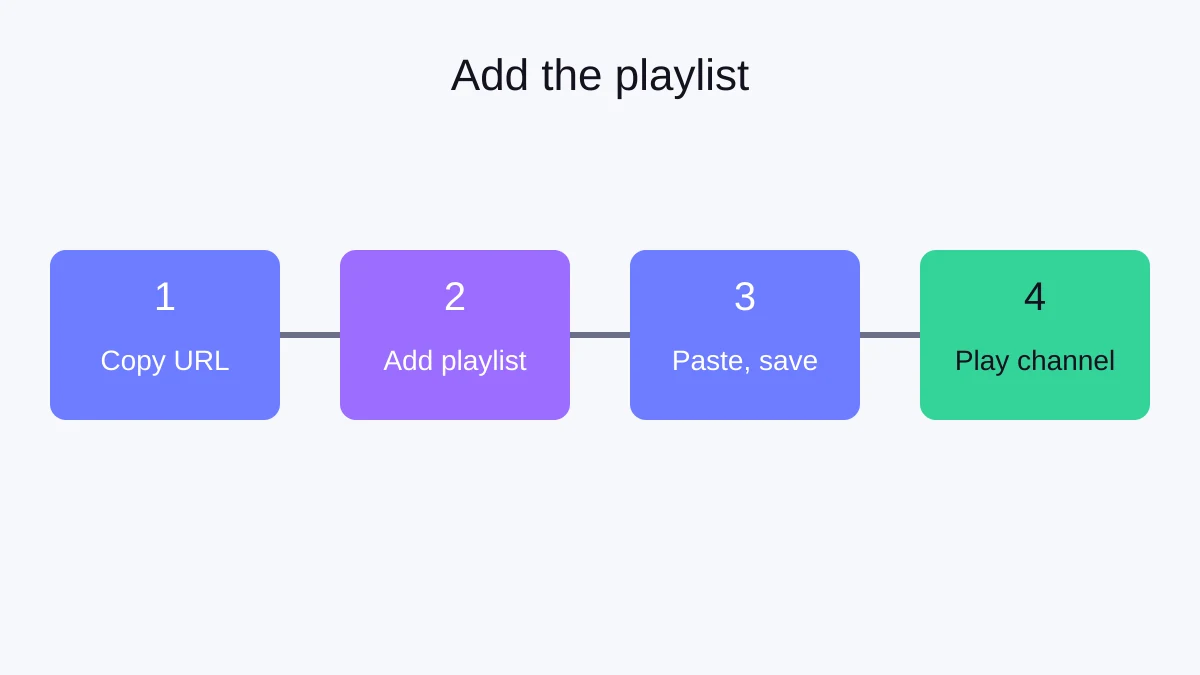
To learn how to add m3u playlist details to a player app, you need three things: your M3U URL from My Accounts, an IPTV player app that accepts M3U links, and a few minutes. Copy the URL, open the app's option for adding a playlist, paste the URL, save it, and wait for the channel list to load. Button names differ between apps and between versions, so this guide describes each step in general terms.
What you need before you start
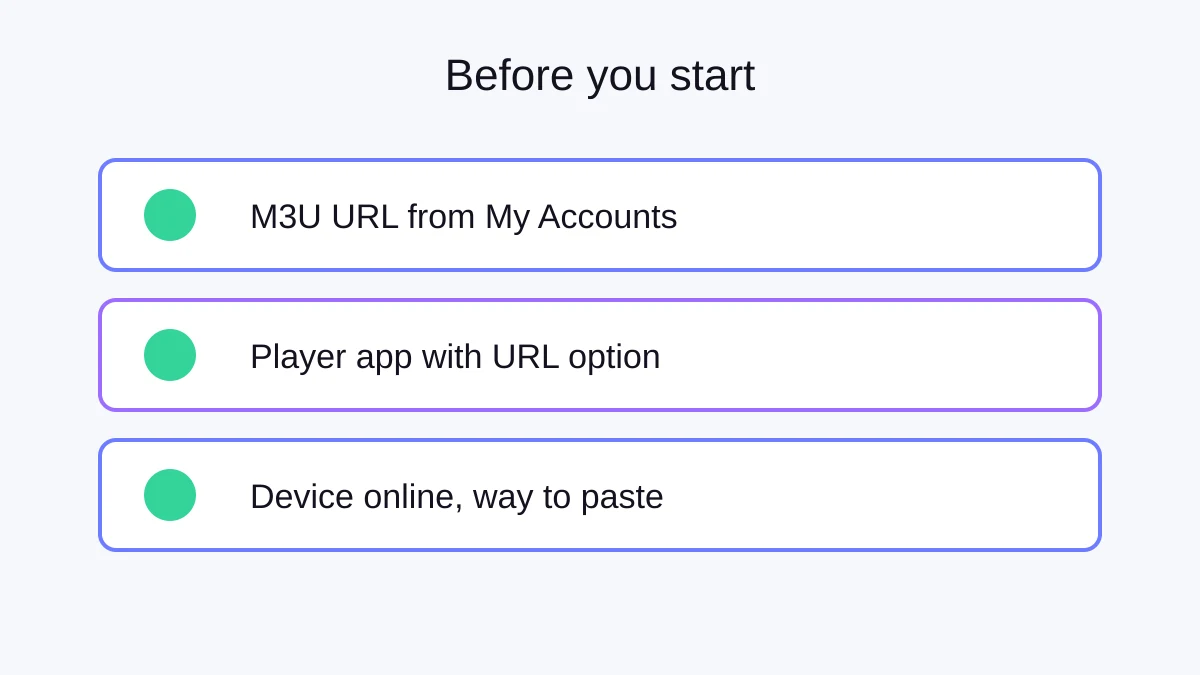
You need an active MediaLen.tv account, a device with a player app installed, and a way to paste text on that device. MediaLen.tv works with any IPTV player that supports M3U or Xtream credentials, so you are not tied to one app. If you do not have a player yet, our guide to a streaming device can help you pick hardware first.
A quick checklist:
- Your M3U URL, found in My Accounts.
- A player app that can add a playlist from a URL.
- A stable internet connection on the device.
- A keyboard, remote with on-screen keyboard, or a phone to type or paste with.
If you want background on the file itself, read what an M3U file is. One neutral fact about the format: a playlist file is plain text where, per RFC 8216, each line is a URI, is blank, or starts with the character '#'.
Step by step: add the M3U URL to your player
The order below is common across IPTV player apps. Menu and button labels vary by app and by version, so look for the closest match rather than an exact name.
- Copy your M3U URL. Sign in to the MediaLen.tv site and look for your M3U URL in My Accounts, then copy it in full. You can tell it worked when the full link is on your clipboard or visible on screen with no cut-off ending.
- Open your player app. On first launch, many apps show a welcome or empty playlist screen. You can tell it worked when you see an option to add content or a playlist.
- Look for an option to add a playlist, a source or an M3U URL. Some apps group this under settings or a playlist manager. Choose the URL or link type, not a local file. You can tell it worked when a text box for a link appears.
- Paste the URL into the field. If the device has no paste function, type it carefully or send it from a phone using the app's own sharing feature if it has one. You can tell it worked when the pasted text matches what you copied, with no spaces at the start or end.
- Give the playlist a name if the app asks. Any short name works, for example Home. You can tell it worked when the name shows in the field.
- Save or confirm. The app downloads the list and builds your channel and on-demand sections. A large library can take a little while on a slow connection. You can tell it worked when channel groups or categories appear.
- Open a channel and play it. You can tell it worked when picture and sound start.
Adding it on a phone, tablet or TV
The flow is the same on every device. On a phone or tablet, pasting is easy. On a TV, typing with a remote is slow, so consider copying the URL on a phone and entering it with the TV's on-screen keyboard, or use a connected keyboard if your TV supports one. For a Fire TV walkthrough, see how to set up MediaLen.tv on Firestick.
If you use IBO Player instead
IBO Player follows a different route. You install the app from your device's app store, then send us the MAC Address and Device Key. Install steps depend on the device: the Appstore on Amazon Fire Stick, the Google Play Store on Android TV, the App Store on iPhone and iPad, and the Samsung Smart Hub or LG Content Store on Samsung and LG Smart TVs. MAG Box and Roku are set up by the MediaLen.tv team.
If you already use a player you like, keep using it. Your M3U URL is always available in My Accounts.
Check that the playlist loaded
Once the app finishes, look for three signs: channel groups are listed, a live channel plays, and a movie or show opens from the on-demand section. Our service lists 22,000+ live channels across 45+ regions and 100,000+ movies and shows on demand, so a short or empty list is a sign to re-check the setup.
If the list looks wrong, try these checks:
- Re-copy the URL from My Accounts and paste it again.
- Look for stray spaces or a missing character at the end.
- Confirm the device is online and can open a web page.
- Restart the app and reload the playlist.
- Try the same URL in a second player app, or on another network.
If playback stutters once everything loads, our IPTV buffering fix guide covers what to check. If you want a program grid, see what an electronic program guide is, since some apps need a separate guide source.
When to contact support
If the problem happens on every device and every network, contact support. You can reach us through the WhatsApp chat, which the site's Live Chat button opens, or by email at support@medialen.tv. Tell us the app name, the device and what you see on screen. Do not post your M3U URL anywhere public, because it is tied to your account.
Choosing a plan for your devices
The M3U URL comes with your MediaLen.tv subscription, and the number of devices that can stream at once depends on your plan, from 1 to 4. You can compare lengths and device counts on the plans page. The lowest advertised rate is $5.00 per month for 1 device on the longest plan, which totals $59.99 for 1 device. For the basics of how the service works, see our IPTV subscription page, and if you are still weighing options, how to choose an IPTV service gives a plain checklist.
Reviewed by Nour-eddine, who runs MediaLen.tv.
Frequently asked questions
Where do I find my MediaLen.tv M3U URL?
Your M3U URL is available in My Accounts. Sign in, open your account details and copy the URL from there.
Which player apps work with an M3U URL?
MediaLen.tv works with any IPTV player that supports M3U or Xtream credentials, not only IBO Player. If you already use a player you like, you can keep using it.
Do I need an M3U URL if I use IBO Player?
For IBO Player, the setup is different: you install the app and send us the MAC Address and Device Key. If you prefer another player that takes an M3U URL, use the steps in this guide.
What if the playlist will not load?
Re-copy the URL with no extra spaces, check your internet connection, and try the same URL in a second app or on another network. If it fails on every device and every network, contact support through the WhatsApp chat (the Live Chat button on the site) or at support@medialen.tv.
Can I use the same M3U URL on several devices?
How many devices can stream at once depends on the device count of your plan, from 1 to 4 simultaneous devices. Check your plan before adding the URL to more than one device.