If your iptv epg not working is the problem, the guide is usually empty, stale or mismatched because the player has not received or refreshed its schedule data. Work through the list below in order: check the connection, update the device, restart it, then refresh the guide in the player. If the guide is still wrong on every device and every network, contact support.
What the guide data actually is
An electronic program guide is a menu that shows current and upcoming programmes. According to Wikipedia's article on electronic program guides, an interactive guide builds its menus inside the local receiving or display equipment, using raw scheduling data sent by broadcasters or centralized scheduling information providers. That data may be distributed over the Internet.
This explains the usual symptoms. Your device draws the grid, but it depends on data arriving from elsewhere. If the data does not arrive, arrives late or is not refreshed, you see an empty grid, old listings or the wrong show under a channel. For the full concept, read our explainer What Is an Electronic Program Guide?.
Fix list: work through it in order
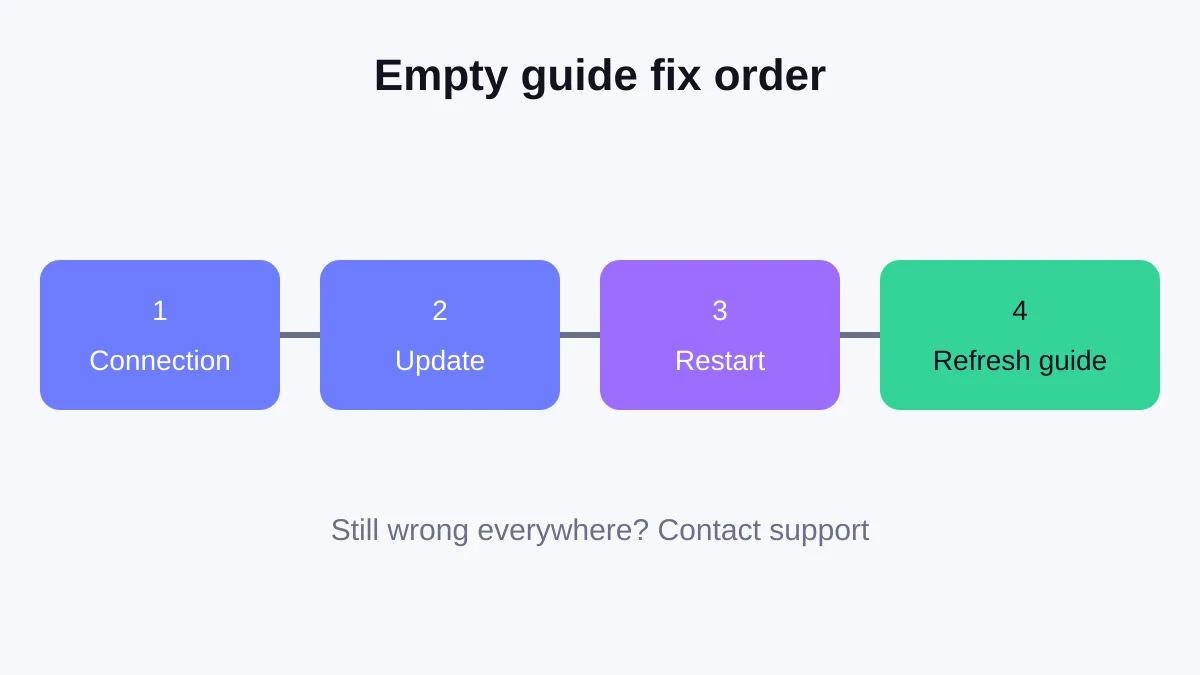
Start with the quick checks and move on only if the guide is still wrong. Each step says how you can tell it worked. Menu and button names differ by device, software version and app version, so the steps below describe what to look for rather than exact labels.
- Look at your network connection. Guide data has to reach the device, so a weak link can leave it blank. Open your device's network settings and confirm Wi-Fi is on and you are on the right network. You will know it worked when other apps load normally and the guide starts filling in.
- Try to improve a slow connection. Google TV Help suggests rebooting the router or unplugging it and plugging it back in, moving it closer to the TV, or using a cable between router and TV. If your router has multiple bands, check you are on the correct one. It worked if pages and menus load quickly again.
- Check for a system update. On Google TV, Google's steps are to open Settings, then System, then About, then System update, then Check for update, and install anything available. Menu names can vary by device and software version. It worked when the device reports it is up to date.
- Restart the device. Google TV Help describes a restart under Settings, then System. On other devices, look for a restart option in the system settings, or unplug the power for a moment. It worked when the home screen returns and the player opens cleanly.
- Refresh the guide in the player. Open the player's settings and look for an option to refresh, reload or update the playlist or guide data. Labels vary by app version, so look around rather than expecting one exact name. It worked when the grid shows current times and programmes.
- Give it a few minutes. A large guide can take a while to load after a refresh. Leave the player open on the guide screen before you decide it failed.
If the guide loads but looks wrong
A guide that shows programmes under the wrong channel, or times that look shifted, is a different symptom from an empty one. Refresh the guide first. Then check your device's date, time and time zone settings, since the grid is drawn on the device and relies on its clock. Then check whether the problem affects one channel or every channel. Note the channel names that look wrong, as that helps support find the cause.
Check each device, not just one
A good way to narrow things down is to compare. The table shows what each result suggests you check next.
| What you see | What to check next |
|---|---|
| Empty guide on one device only | That device's connection, update status and restart |
| Empty guide after a router change | Network and band, then restart the device |
| Old listings that never move | Refresh option in the player settings |
| Wrong listings on one channel | Note the channel and tell support |
| Same problem on every device and network | Contact support |
Try a second player
MediaLen.tv works with any IPTV player that supports M3U or Xtream credentials, not only IBO Player, and your M3U URL is always available in My Accounts. Loading the same playlist into a second player is a fair test of whether the problem follows the player or follows the playlist. If you are unsure what the playlist is, see What Is an M3U File?.
If the guide only fails after video also struggles, you may be dealing with a connection issue as well. Our guide to an IPTV buffering fix for Android TV and Google TV covers the connection steps in more depth.
When to clear data or reset
Google TV Help also lists clearing an app's data and, as a last resort, a factory reset. Clearing data usually removes the app's saved settings, so you may need to sign in or add your playlist again. Google warns that a factory reset erases all data on the device and recommends trying other steps first. Keep both for the end of your list.
When to contact support
If the guide is empty or wrong on every device and every network, contact support. Use the WhatsApp chat, which the site's Live Chat button opens, or email support@medialen.tv. Tell us the device, the player and what you already tried, so we do not repeat the same steps with you. Account and billing questions can go to the same chat.
Choosing a setup that suits you
A stable device and a player you like make guide problems easier to sort out. If you are picking hardware, see Best Devices for Streaming in 2026. If you are still comparing providers, How to Choose an IPTV Service gives a plain checklist. You can read more about what an IPTV subscription involves and see MediaLen.tv plans when you are ready. MediaLen.tv plans are priced by length and by 1 to 4 devices, and the longest plan starts at $5.00 per month for 1 device on the 1 Year plan.
Reviewed by Nour-eddine, who runs MediaLen.tv.
Frequently asked questions
Why is my IPTV guide empty?
An interactive guide is built on your device from scheduling data, and that data may be sent over the Internet. If the device has a weak or broken connection, or the player has not refreshed its guide data, the grid can show nothing. Check the connection, restart the device, then refresh the guide in your player.
Will restarting my device fix the guide?
It can. Google TV Help lists a restart as one of its standard troubleshooting steps. After the restart, open the player and give the guide a little time to load before judging the result.
Does the guide work the same in every IPTV player?
No. Each player handles guide data in its own way, and menu labels vary by app version. Look in the player's settings for an option to refresh or reload the guide or playlist data.
What if the guide is wrong on every device?
If the problem happens on every device and every network, contact support. Use the WhatsApp chat (the Live Chat button on the site opens it) or email support@medialen.tv, and tell us which player and device you tried.
Can I use a different player if the guide keeps failing?
Yes. MediaLen.tv works with any IPTV player that supports M3U or Xtream credentials, and your M3U URL is always available in My Accounts. Trying a second player is a useful way to see whether the guide behaves the same.